

You made a plan.
Then it was Tuesday.
A few ways to use Tavellum when the lesson is happening at the kitchen table, across the room, or on someone else’s screen.
One page is a perfectly good start.
- Bring your curriculum. Upload a PDF to Shelf once. Group your resources in collections by subject, learner, or year, then choose the pages you want on the board.
- Put the thinking beside it. Choose Templates for a ready-made lesson setup, or add a note, a teaching material, or some ink. Use Fit template to see the whole setup. Move objects by their handles; use Hand to move around the board.
- Make room for the next thought. Pin a question to revisit, or use Calendar to plan a return. An Agenda on the board brings that day’s plan into the lesson.
- Check the save state. “Saved here” means this browser has your work. Check the separate backup status before expecting it on another device.
You do not have to arrange the entire school year before teaching page one. Page one has plenty going on.
Same board.
Bigger questions.
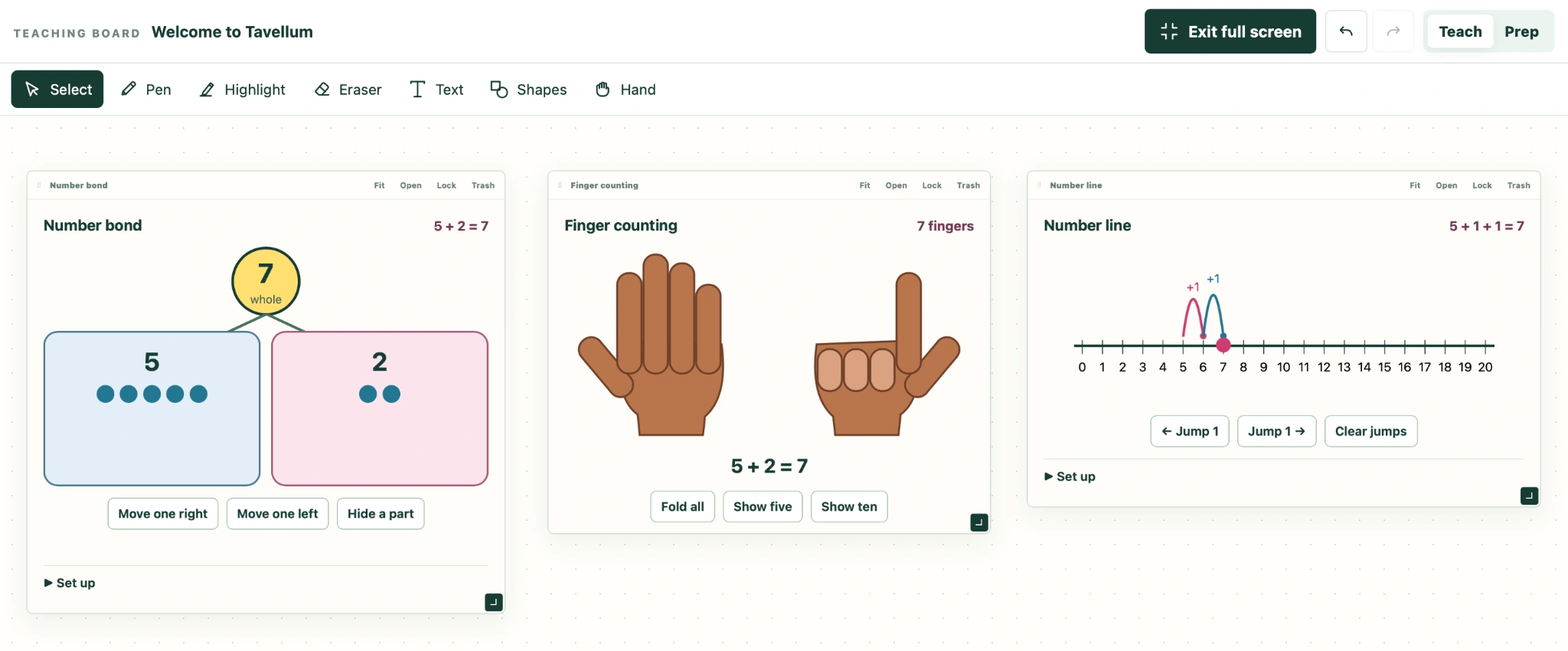
Try these real lesson controls here without an account. In your workspace, open Materials to add them to a lesson. Rulers, protractors, and mapping nodes open on a practice board so you can move them over other content.
Practice only: changes reset when you change materials or leave this page. They are not saved to your family workspace.
A small lesson: a rule with a story
Set up: Enter 2*x + 3 as the rule. Imagine a tank starting with 3 litres and filling at 2 litres per minute. Let x mean minutes and y mean litres. Predict before revealing a check.
Ask: What should the rule give at zero minutes? What changes for each extra minute?
What to listen for
The learner connects the starting volume to x = 0 and distinguishes it from the amount added each minute. Ask for units when they interpret a prediction.
Next: Change only the starting volume. Predict what will happen to the graph before checking.
- Sort and connect
- Use boxes and circles for groups or steps. Connect them with arrows on the board. Start a mind map with one question.
- Compare and support
- Use a Venn diagram for characters, sources, or scientific ideas. Move from “I think” to claim, evidence, and reasoning.
- Notice and name
- Sequence days and months. Compare a flat shape with a solid, describe it first, then reveal its properties.
- Write and reflect
- Start with a story, explanation, argument, or close reading. Change the prompt to fit your learner; their response stays in place.
The living room counts.
Put Tavellum on a TV or projector using your device’s display controls. Keep teaching from the computer or tablet that is connected.
A cable and a bigger screen
Connect your computer with the HDMI cable or display adapter it supports. Choose the TV or projector’s matching input. Mirror your display, or extend it and move the Tavellum window onto that screen.
Apple’s external-display guideAirPlay
With a compatible TV or Apple TV, connect both devices to the same Wi-Fi network. Open Control Center, choose Screen Mirroring, then select the display.
Mac screen-mirroring controls · iPad screen-mirroring guideCast from Chrome
For a Google Cast-compatible display on the same Wi-Fi network, open Chrome’s menu, find Cast, and choose the Tavellum tab and the display.
Google’s casting guideIn Tavellum, choose Teach to hide Prep objects, then Full screen to give the board more room. Check that the words are readable from the back of the room. Your laptop is very optimistic about font size.
“Can you see my screen?”
A teaching plan.
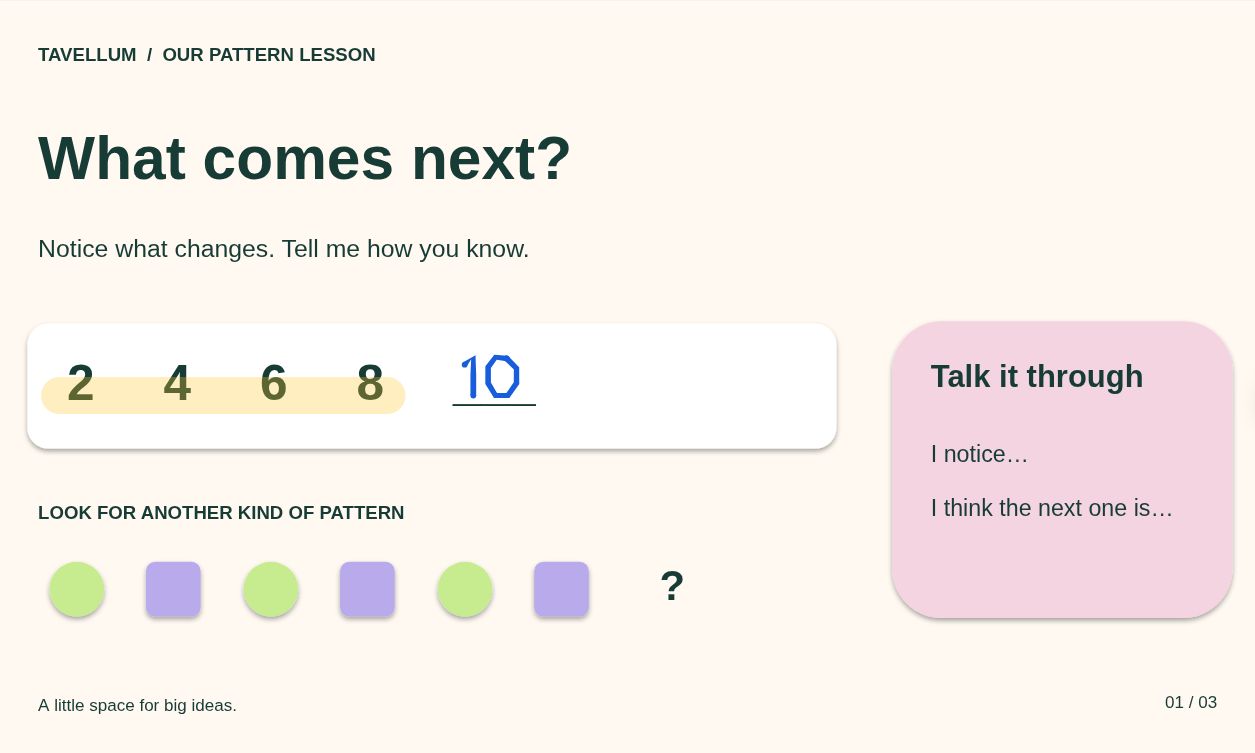
- For a PDF, PowerPoint, or picture, open Present beside Calendar. Choose Open a lesson file or resume a Shelf resource, then Share lesson.
- In Zoom, Google Meet, or Teams, share the separate Tavellum lesson window. Check the preview to confirm it shows only the lesson and your writing.
- Annotate the page and ask the learner to explain their thinking. You control the lesson; screen sharing does not give participants editing access.
- Use Pause audience while preparing the next page, or stop sharing in your meeting when finished. Choose Back to board to return to your workspace.
To teach with board materials instead, choose Teach and Full screen, then share the board window. Stop that share before opening private Prep notes or another learner’s work.
Use your meeting or device controls to silence notifications. Screen sharing and casting are provided by those tools; Tavellum runs in your browser.
Keep the work. Leave room for tomorrow.
Return to Shelf for another page, keep a reminder in Pins, or choose Save activity on a selected writing or thinking activity. Find reusable setups in Pins → Saved activities; learner responses stay with the lesson and on Student Page. A lesson can be worth keeping without having gone according to plan.
Create account